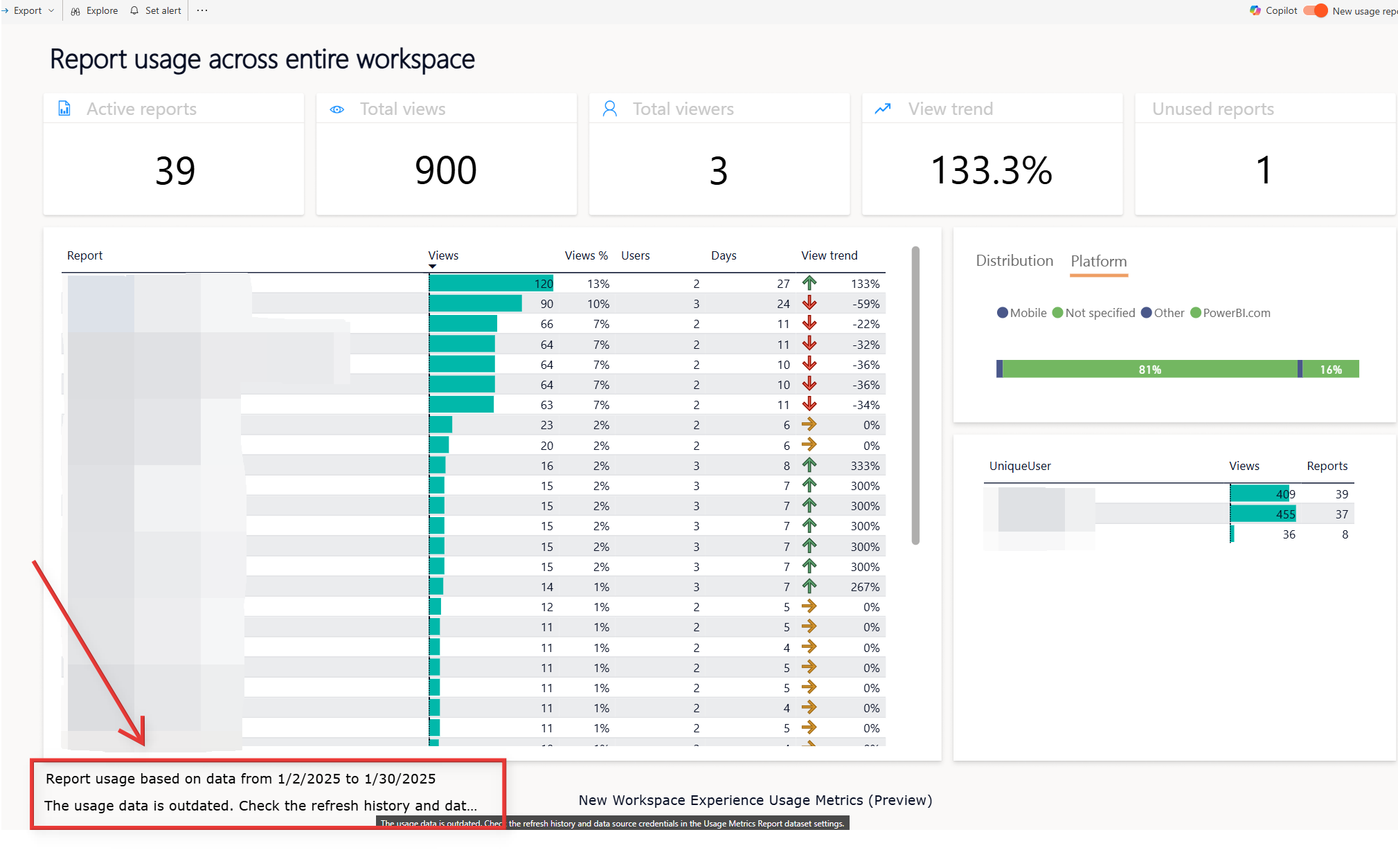

A while back I wanted to check the usage metrics for one of my reports in the Power BI Service, to see the page views and report opens. So I used the good old ‘View usage metrics report’ under the ‘More options’ of the report. It opened the Usage Metrics Report, but to my surprise I saw a small message at the bottom of the page: “The usage data is outdated. Check the refresh history and data source credentials in the Usage Metrics dataset settings”.
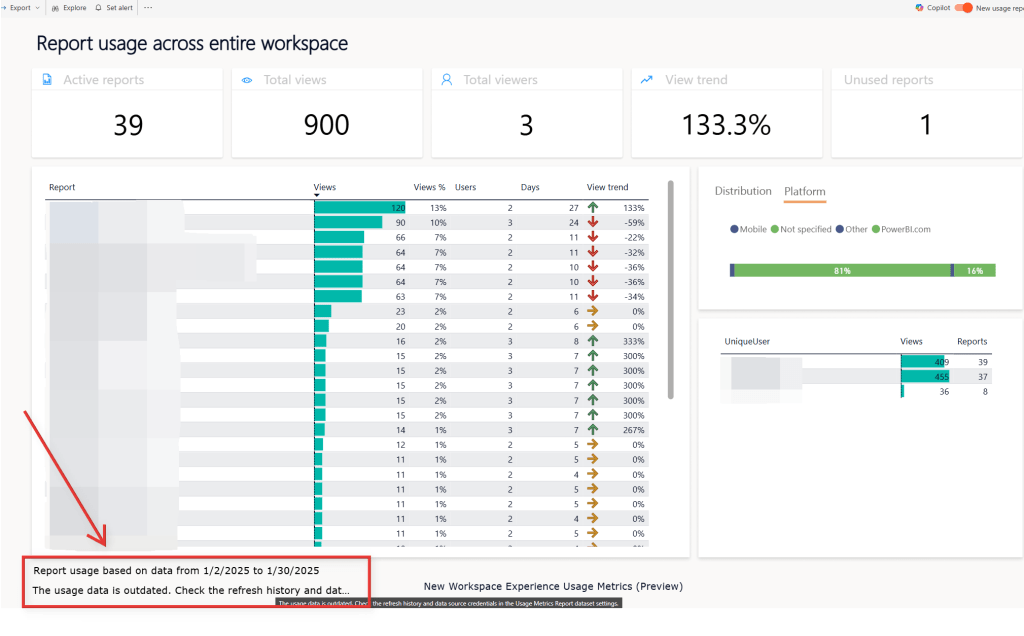
Image 1 – Outdated message in the Usage Metrics Report
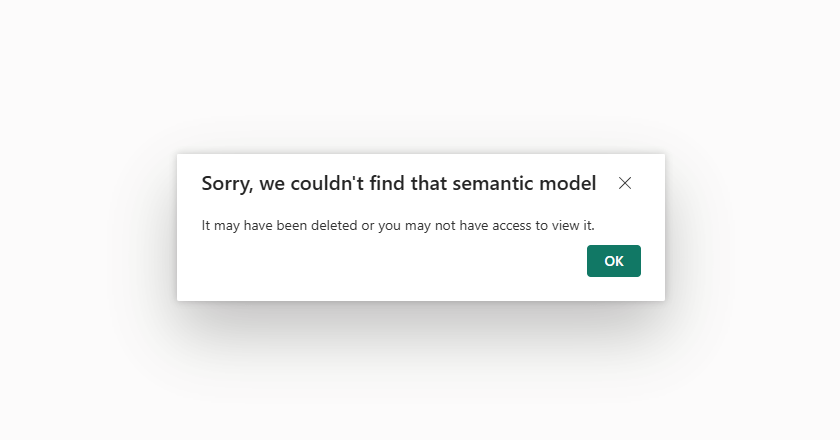
The Usage Metrics model isn’t visible in the workspace and by trying to access it via the report I got the error in Image 2:
I also tried refreshing with the Refresh Dataset In Group API call but got this error “AADSTS700082: The refresh token has expired due to inactivity. The token was issued on 2025-01-31T16:41:16.2308401Z and was inactive for 90.00:00:00. Trace ID: 5dc3814c-b0f0-4d03-b2c8-6065ee514100 Correlation ID: bede7ae1-c070-47aa-bf24-8fd15454e89e Timestamp: 2025-05-12 08:12:01Z” (Just to clarify, I am the workspace admin and also the tenant admin)
After a bit of digging, I found this post in the Power BI forums so credits to the author. In short, the quickest way to refresh the broken Usage Metrics Report semantic model is to actually delete it and then recreate it by triggering the “View usage metrics” in any report of the workspace:
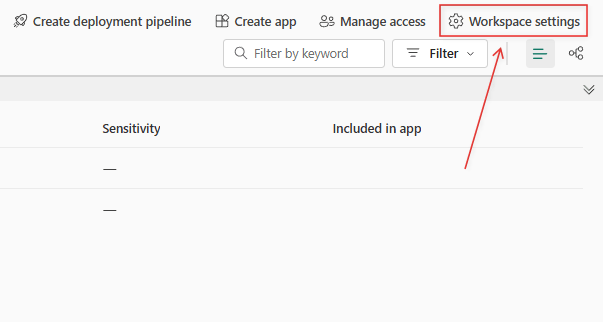
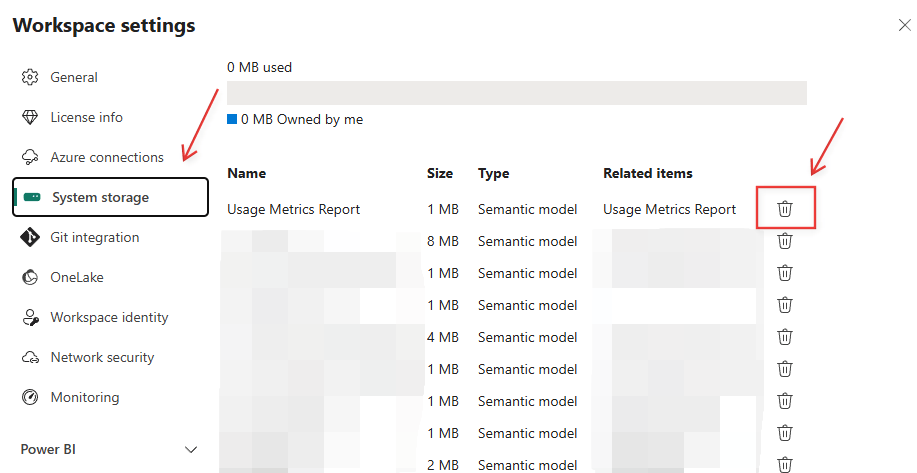
1 – First go to ‘Workspace settings’ -> ‘System Storage’ and delete the model (Because its is not visible in the UI)
2 -Then go the report you want to check the views (or any in the workspace really) and click on ‘More options’ -> ‘View usage metrics’
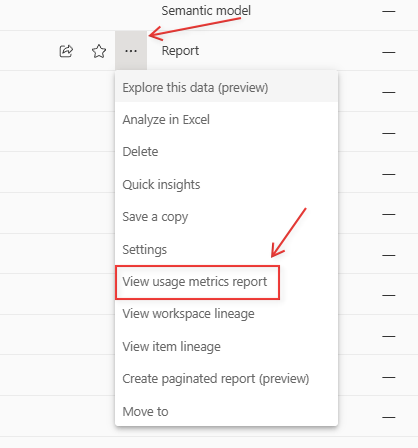
Then a new and updated Usage metrics report will be avaialble.